Time Sensitive Notifications Explained: Smart Settings Guide
Modern smartphones help us stay connected every single minute of the day. Using time sensitive notifications ensures you never miss crucial alerts while maintaining peaceful focus during busy work hours. These intelligent priority messages bypass quiet settings to deliver emergency updates, medical reminders, delivery trackings, and security codes instantly. Understanding how priority alerts operate helps you balance productivity while staying informed. In this complete breakdown, you will discover how priority alerts work across devices, how to set them up, and how to customize your screen for maximum daily efficiency.
Priority notification tools represent a massive step forward for smartphone software design. Smartphone makers created time sensitive notifications so important app updates always reach your eyes without overwhelming your day with constant background chatter. When you activate focus filters, your device silences non-urgent social media alerts, promotional emails, and basic game invites. However, high-priority messages break through those barriers immediately so you remain safely informed. This perfect balance gives users peace of mind during work meetings, family dinners, and relaxing evening hours.
What Are Time Sensitive Notifications on Modern Devices?
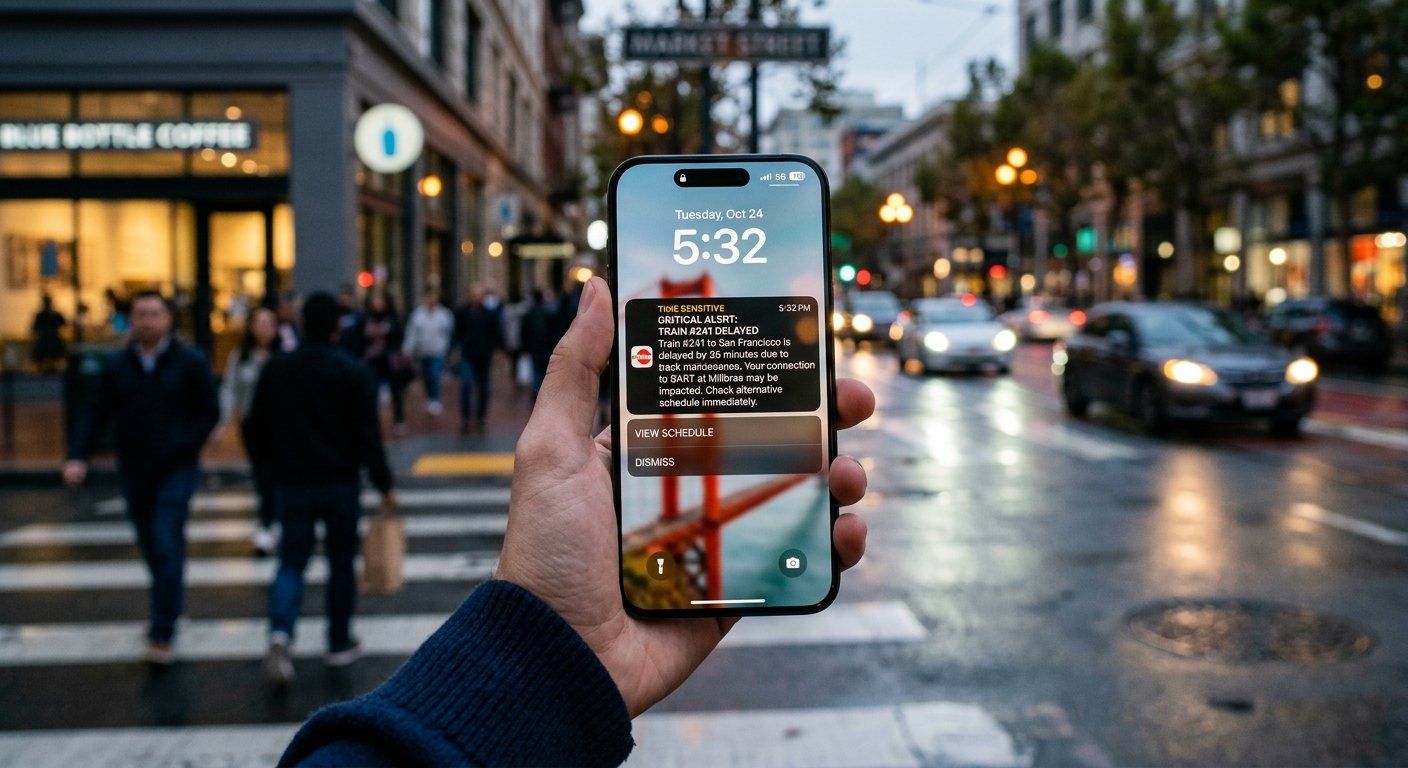
Special high-priority alerts deliver critical information that requires your immediate personal attention. App developers flag specific messages like food deliveries, rideshare arrivals, flight changes, and bank fraud warnings as urgent content. When these unique alerts arrive, your phone highlights them on your lock screen even if Do Not Disturb mode remains active.
Smart priority systems filter out low-priority noise automatically so you only see what truly matters. Using time sensitive notifications correctly stops you from checking your phone constantly throughout the day. You can relax knowing your phone will only interrupt your focus when real emergency events happen.
How Priority Alerts Bypass Do Not Disturb and Focus Modes
Standard focus profiles mute incoming phone sounds, screen banners, and vibration signals. Urgent messages work differently because operating systems treat them with high priority protocols. When an application sends critical updates, your system checks the priority flag attached to the data packet.
If the system validates the request, your screen lights up with a prominent warning message immediately. Receiving time sensitive notifications during quiet hours keeps you safe without ruining your concentration. System intelligent filters make sure apps do not abuse this privilege, keeping your mobile experience clean and peaceful.
Key Differences Between Standard and Urgent Notifications
| Feature Type | Standard Notifications | Time Sensitive Notifications |
| Delivery Speed | Standard queue processing | Immediate high-priority delivery |
| Focus Mode Behavior | Muted and stored in background | Bypasses silent profiles automatically |
| Visual Appearance | Regular lock screen card | Marked with prominent priority badges |
| Typical Use Cases | Social likes, news updates, promos | Bank codes, ride updates, health alerts |
| Screen Persistence | Disappears after brief preview | Stays visible until reviewed by user |
| User Control | Simple toggle switches | Advanced permission settings per app |
How to Enable Urgent Alerts on Your iPhone
Turning on system features takes only a few quick taps inside your iOS settings menu. Open your main Settings app, tap on Notifications, and scroll down to select your preferred application. Look for the priority alert toggle switch and turn it on to enable immediate message delivery.
Next, visit your Focus settings menu to manage custom profile filters carefully. Make sure you grant permission for time sensitive notifications inside your Work, Sleep, or Personal Focus profiles. This setup guarantees essential messages reach your lock screen without letting unwanted social media distractions through.
Setting Up High-Priority Messaging Controls on Android
Android handles urgent message channels with robust notification settings that give you complete personal control. Navigate to your system Settings, open Apps, and choose the software you want to adjust. Tap on Notifications to view every individual notification channel available for that app.
Set your critical channels to High Priority so they break through system restrictions effortlessly. Configuring time sensitive notifications on Android ensures live navigation, weather warnings, and security alerts bypass quiet schedules. You get ultimate control over which tools can interrupt your quiet working hours.
Popular Apps That Use Urgent Notification Features
- Rideshare Services: Uber and Lyft send driver updates and pickup alerts directly to your lock screen.
- Delivery Apps: DoorDash and Instacart alert you the moment your food reaches your doorstep.
- Banking Software: Financial institutions deliver instant two-factor security codes and purchase confirmations.
- Smart Home Security: Ring and Nest trigger immediate warning messages when motion sensors detect activity.
- Health and Fitness Tracker: Calendar tools and medication apps remind you to take prescriptions on time.
Essential Apps That Need Urgent Message Permissions
Certain applications require high-priority access to keep your daily life running smoothly. Travel apps need immediate access to inform you about sudden flight delays, gate changes, or boarding alerts. Missing these vital updates can ruin your travel plans and create unnecessary stress.
Medical management software also relies heavily on time sensitive notifications to protect user wellness. Emergency communication tools and home security monitors require immediate screen permissions to alert you about real threats. Allowing these specific applications to send priority messages keeps your daily routine safe and organized.
How Smart Alerts Prevent Digital Burnout and Stress
Constant phone buzzes distract our minds, raise stress levels, and break productivity habits throughout the workday. Custom priority messaging solves this modern problem by filtering out non-essential software noise completely. You stay focused on important tasks while remaining confident that critical information will still reach you.
Managing your smartphone settings creates a healthy boundary between digital life and real-world moments. Enabling time sensitive notifications only for essential tools reduces phone checking behavior by over fifty percent. You enjoy quieter work sessions, peaceful family meals, and restful sleep every single night.
Troubleshooting Common Issues with Priority Messages
If priority messages fail to show up, start by checking your device power settings immediately. Extreme battery saving modes often restrict background data connections, blocking priority messages from reaching your screen. Turn off aggressive power saving features for your essential apps to restore instant message delivery.
Another common problem involves outdated software versions that clash with modern focus filter settings. Update your operating system and applications regularly to keep notification services working properly. Auditing time sensitive notifications inside your main settings menu guarantees your preference rules remain active after system updates.
How to Stop Apps From Abusing Urgent Alerts
Sometimes marketing apps abuse priority settings to send unwanted promotional ads directly to your lock screen. When an application sends non-urgent marketing clutter using priority channels, you can turn off its special permissions immediately. Press and hold the offending notification banner on your screen to adjust its settings instantly.
Revoking priority access forces the application back into your standard, muted notification tray. Restricting time sensitive notifications to true emergency services protects your screen space from invasive advertising. Taking two minutes to prune noisy apps keeps your mobile device organized and clutter-free.
Best Practices for Customizing Smartphone Alerts
Creating an efficient notification system takes just a little bit of thoughtful planning. Start by listing the top five applications you rely on for daily safety, travel, work, and communication. Grant high-priority permissions exclusively to those critical tools while leaving everything else muted.
Review your notification settings every few months to remove apps you no longer use regularly. Keeping time sensitive notifications limited to essential services maintains strong digital boundaries. A well-tuned phone serves as a powerful personal assistant that respects your time and attention.
Frequently Asked Questions (FAQs)
Q1: What are time sensitive notifications on mobile devices?
They are high-priority alerts designed to break through Do Not Disturb and Focus modes to deliver critical information immediately.
Q2: Do priority alerts drain your smartphone battery faster?
No, priority messages use standard system background processes and do not consume extra battery power under normal daily conditions.
Q3: Can I turn off priority messages for specific applications?
Yes, you can easily disable priority alerts for any application by visiting your system Settings menu and adjusting notification permissions.
Q4: Will priority alerts sound if my phone is set to silent mode?
Depending on your Focus mode permissions, priority alerts can play sound or vibrate to ensure you see critical messages quickly.
Q5: Why am I receiving promotional ads as priority messages?
Some app developers improperly flag marketing as urgent; you can fix this by disabling priority permissions for that specific app.
Q6: Are priority message settings available on both Android and iOS?
Yes, both operating systems offer advanced settings to prioritize critical application alerts over standard notifications.
Master Your Smartphone Today
Taking charge of your digital life starts with customizing how your device talks to you. Setting up time sensitive notifications properly allows you to enjoy uninterrupted work sessions while staying connected to essential updates. Audit your phone settings right now, turn off unnecessary app clutter, and keep only critical alerts active. Share your favorite productivity tips in the comments below, and start enjoying a distraction-free mobile experience today!